
How Evercade-native games work and why your Menu button stopped responding
Learn the difference between emulated and native Evercade cartridges, how to save and quit without the system Menu button, and which games have hardware compatibility quirks.
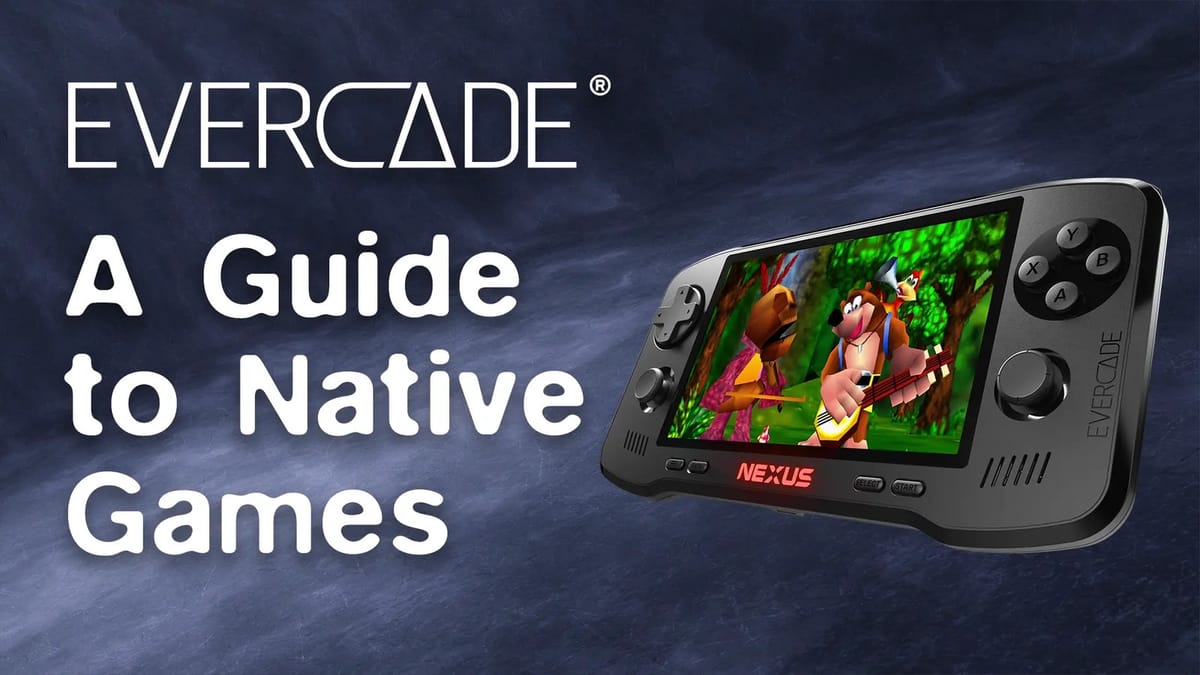
Pressing the Menu button on an Evercade console usually brings up a convenient overlay for save states, display filters, and button mapping, unless you're playing one of the platform's native ports. With the October 30 launch of the Banjo-Kazooie Double Pack (Cartridge 53), Blaze Entertainment has detailed how its growing roster of native cartridges operates and why your favorite system-level shortcuts disappear when you boot them up. Evercade is currently our favorite platform, and this is a cool guide to how native games run across its hardware lineup.
Since launching in May 2020 with the original Evercade Handheld, Blaze built its catalog of more than 90 cartridges and 750 titles primarily around emulation. When you pop in a vintage Atari, Jaleco, Namco, or Amiga compilation, the system spends a chunk of its processing overhead pretending to be that older machine. Native games skip the middleman entirely.
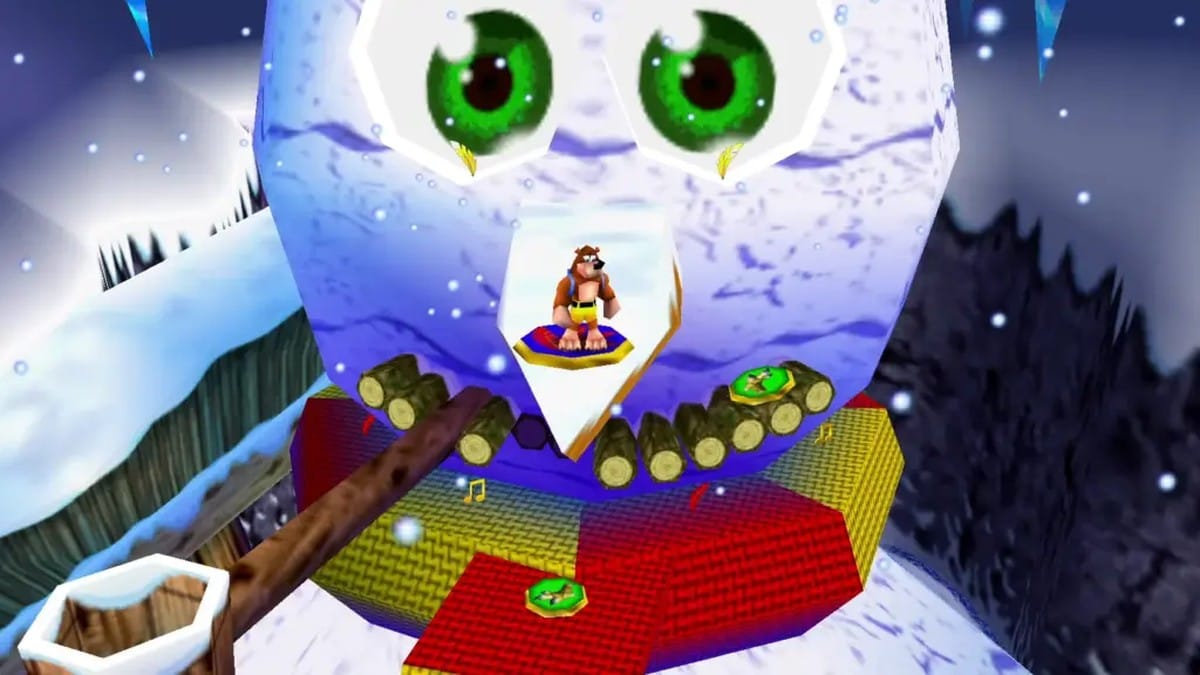
Why the Menu button does nothing in native ports
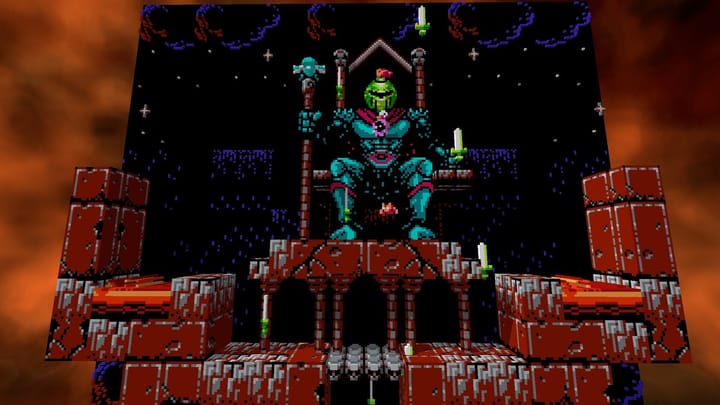
By compiling modern indie games and enhanced source ports to run directly on Evercade's underlying Linux-based architecture, developers get access to far more of the hardware's raw power. That extra headroom is how a modest handheld or micro-console can run smooth, updated versions of Rare's 1998 Nintendo 64 platformer Banjo-Kazooie, id Software's DOOM, or Decemberborn Interactive's 8-bit style Metroidvania Cathedral without choking on an emulator shell.
The trade-off is that leaving the emulation wrapper behind also leaves Evercade's universal operating system overlay behind. I'm glad Blaze is pushing the hardware past standard 8-bit and 16-bit emulators, even if losing instant save states takes some muscle-memory adjustment. In a native game, the physical Menu button often does nothing at all. You can't rely on the console's shell to pause the action, swap display bezels, or force-quit to the cartridge selection screen. Everything has to be handled inside the game's own software menus, just like it was on original hardware.
How to save and quit without losing progress
Because you don't have safety-net save states in native releases, flipping the power switch when you're done playing is a fast way to lose your progress or corrupt your settings. You need to use each game's built-in save mechanics and exit routines before shutting your device down.
- Step 1: Pause using the game's standard controls. Instead of reaching for the Evercade Menu button, press the Start button during gameplay to bring up the title's internal pause screen.
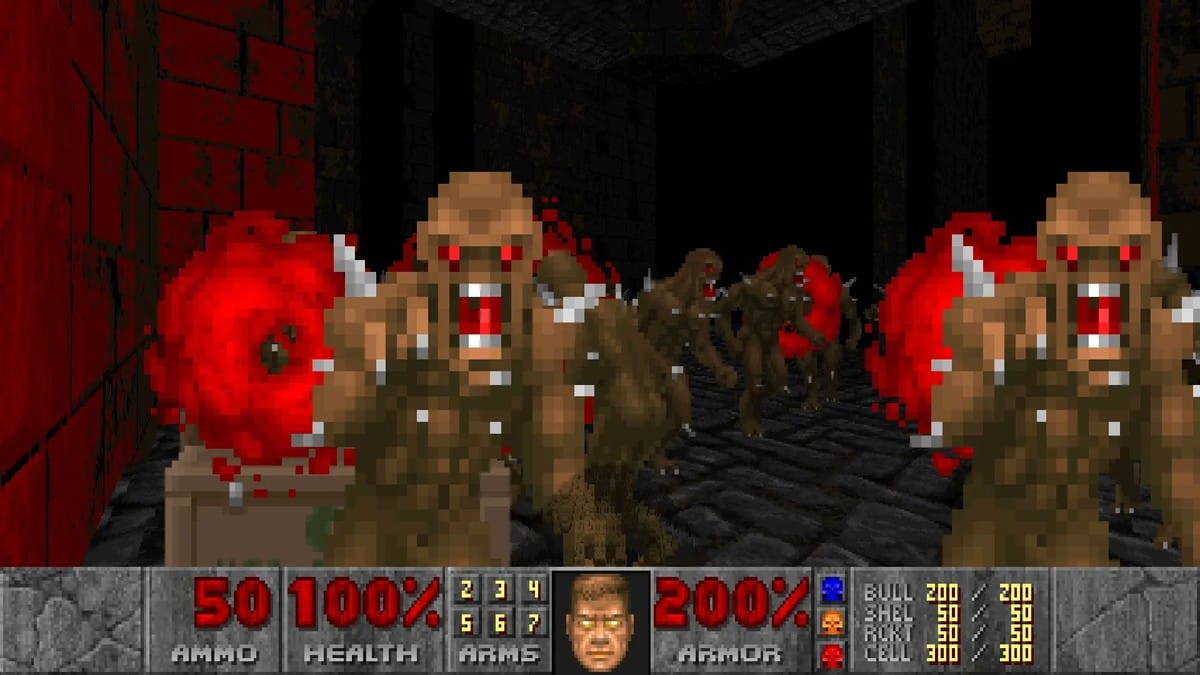
- Step 2: Trigger an in-game save. Native games rely on their own save systems, such as battery-style file slots or level checkpoints. In The DOOM Collection, you must manually save your progress from the pause menu before ending a session.
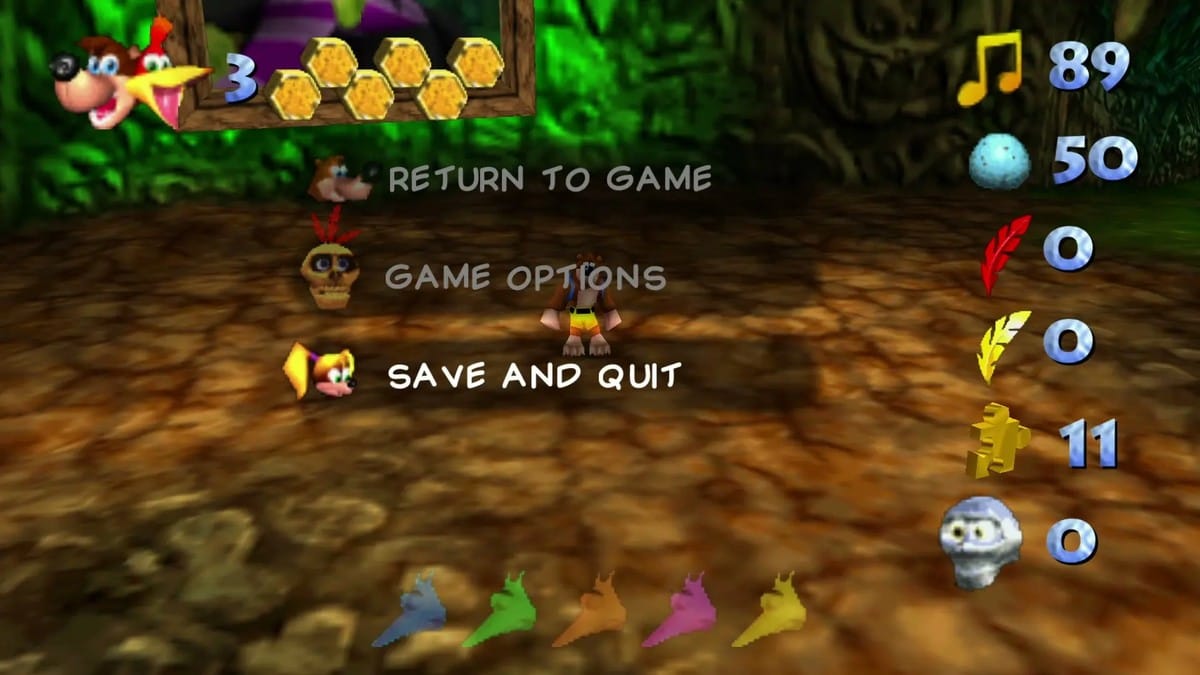
- Step 3: Exit via the in-game quit command. In Banjo-Kazooie or Banjo-Tooie, press Start, select Save and Quit, and then choose either Exit to Title (to return to the game's intro screen) or Exit game to boot completely back to the Evercade system menu.
- Step 4: Backing out of multi-game hubs. If you're playing DOOM, DOOM II, or one of the included mission packs, press Start and select End Game after saving. From the main title screen, choose Quit to return to the Evercade interface, or pick Select Game to swap to another expansion without closing the cartridge.
- Step 5: Power down safely. Wait until you're back on the main Evercade home screen before turning off your handheld or console.
All 11 native games and current hardware compatibility
Out of the whole library, nine cartridge releases and two hidden bonus games currently run natively. Because these ports are tailored directly to the hardware rather than running inside a unified emulator, some require device-specific patches across the Evercade Handheld, VS, VS-R, EXP, EXP-R, Alpha bartop arcade, Nexus, and HyperMegaTech! Super Pocket. It's a minor annoyance if you own multiple devices, though Blaze updates cartridge compatibility through system firmware.
- Cathedral (Alwa's Awakening / Cathedral): Currently incompatible with the Evercade Alpha bartop arcade line.
- Bubble Seahorse Adventures (Indie Heroes Collection 3): Currently incompatible with the Evercade EXP-R, Evercade Alpha, and Evercade Nexus.
- Hummingz (Secret game): Currently only unlockable and playable on the Evercade VS and Evercade VS-R home consoles.
- Fully compatible native cartridge titles: Banjo-Kazooie and Banjo-Tooie (Banjo-Kazooie Double Pack), The DOOM Collection, Duke Nukem I + II Remastered (Duke Nukem Collection 1), Full Void, Donut Dodo (Indie Heroes Collection 3), Murtop (Indie Heroes Collection 4), and the secret game Fairy Fire: Defender of the Fairies.
If one of the restricted games above won't boot on your specific unit, make sure your console is connected to Wi-Fi and check the System menu for firmware updates as Blaze rolls out hardware-specific tweaks.
Pick up DOOM 3 on Humble Bundle.
Some links in this article are affiliate links. Purchases made through them help support Pants Pants Revolution at no extra cost to you.
Comments ()